Most tutorials on generating QR codes from Excel end at the download button. You upload a column of links, wait for a ZIP file, and print a batch of codes nobody can update, track, or tie back to a campaign. That is not a bulk QR workflow. That is bulk guesswork.
If your spreadsheet has fifty product links, three hundred event badges, or a thousand store locations, speed alone will not solve your problem. You need every code connected to scan data you can act on. Here is how to turn a spreadsheet into a live QR campaign, not just a folder of images.
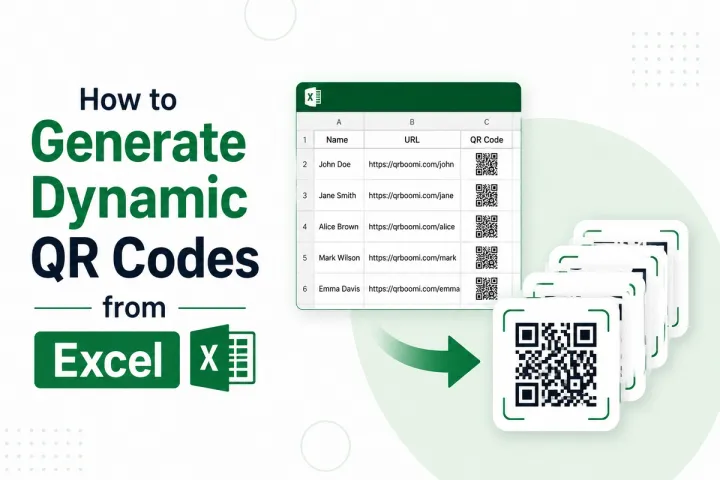
Generating QR codes from Excel means turning a spreadsheet column of links, product IDs, or contact details into a batch of scannable QR codes in one upload, instead of creating each code by hand. Specifically, QRBoomi's Bulk QR Generator reads your CSV, XLSX, or XLS file, turns every row into its own QR code, and keeps each one dynamic and trackable inside a live campaign, so bulk generation does not mean giving up control after export.
Why Manual QR Code Creation Doesn't Scale
Creating one QR code at a time works fine when you need one QR code. It falls apart fast once your list grows.
A retail brand with two hundred SKUs cannot generate two hundred individual QR codes by hand before a launch. An event team with an eight-hundred-name badge list does not have time to copy and paste each entry into a generator. A real estate agency listing forty properties needs forty QR codes live before the weekend, not by the end of the month.
Most spreadsheet-to-QR tutorials solve the speed problem and stop there. They walk you through an Excel IMAGE formula, a VBA macro, or an add-in that outputs a batch of static images. The codes generate fast. Then the real problem shows up: every code is frozen the moment it is created.
Change a price, swap a link, or fix a typo, and the printed codes are wrong. There is no way to update them and no way to see which codes were actually scanned, from where, or on what device. You get a folder of images, not a campaign.
That gap between fast generation and real campaign control is where most bulk QR workflows quietly fail. The codes work. The marketing behind them does not.
What You Need Before You Start
You do not need special software to prepare your file. A standard spreadsheet works, as long as the data is structured for bulk upload.
QRBoomi's Bulk QR Generator accepts CSV, XLSX, and XLS files directly, so whatever you already have in Excel or Google Sheets should import without conversion. You can also skip the file entirely and type your data straight into the platform for smaller batches.
Before you upload, confirm two things: every row has the destination data you want encoded, whether that's a URL, a phone number, or contact details, and every row has something that identifies it, like a product name or SKU. That identifier is what will make sense of your codes later, once they are live and generating scan data.
Step 1: Prepare Your Spreadsheet for Bulk Upload
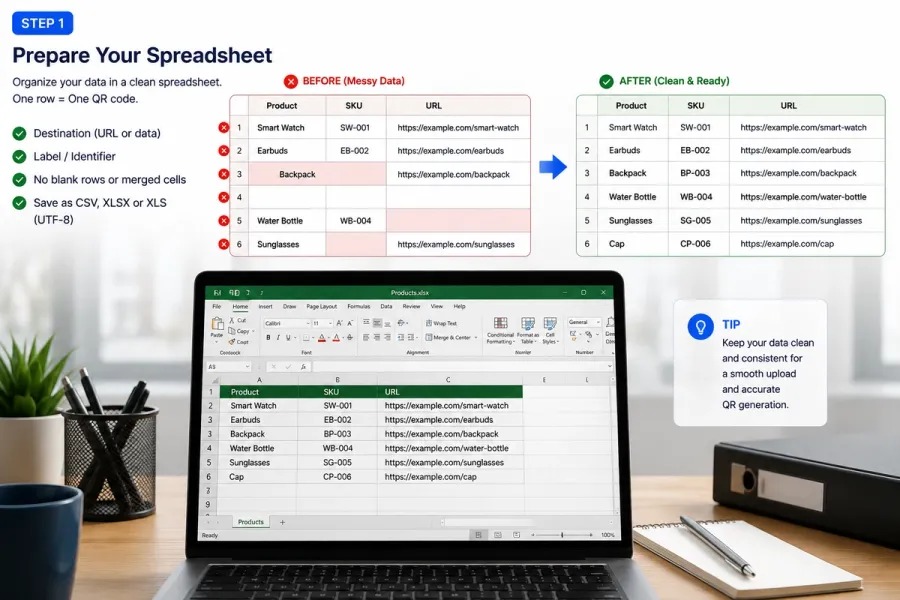
Structure matters more than formatting. Keep your file simple: one row per QR code, one column for the destination link or data, and one column for a clear label or ID.
Avoid merged cells, blank header rows, and inconsistent formatting. These are the most common reasons a bulk upload behaves unpredictably in any platform, not just QRBoomi.
Exact column requirements can vary depending on the QR type you're generating, since a URL code needs different fields than a WiFi or vCard code. It's worth checking QRBoomi's sample template inside the platform before a large upload.
Step 2: Upload Your File in QRBoomi's Bulk QR Generator
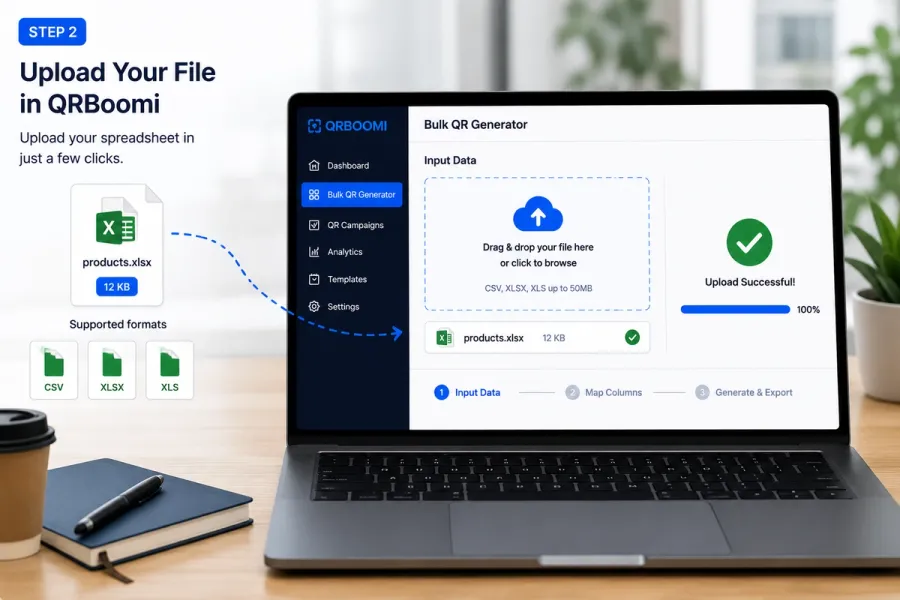
Inside QRBoomi, Bulk QR sits in the left-hand navigation, alongside the single QR Generator, My QRs, and Linked Pages. Open it, and you land on a three-step workflow: Input Data, Map Columns, and Generate & Export.
On the Input Data step, you have two options. Upload a file by dragging it into the drop zone or browsing your computer, with CSV, XLSX, and XLS all supported. Or, for a shorter list, switch to Type Manually and enter your data directly.
This is the step that separates a real bulk QR workflow from a one-off generator. Your spreadsheet becomes the source of an entire QR campaign in a single upload, not two hundred separate clicks.
Step 3: Map Your Columns and Generate

Once your file uploads, QRBoomi moves you into Map Columns, where your spreadsheet fields line up with the data each QR code needs, followed by Generate & Export, where your full batch is created and made ready to use.
Because this stage touches your actual campaign data, it's worth a quick review pass before you generate. Confirm your destination links are correct, and confirm your labels are the ones you want showing up in your dashboard and analytics later.
Every code that comes out of this step is a full QRBoomi QR code, not a static image. That means each one is dynamic and trackable from the moment it is created, whether you generated one code or one thousand.
Why Dynamic Bulk QR Codes Change the Outcome
Most bulk QR tools treat the export as the finish line. Static-only generators hand you a ZIP file of images and consider the job done.
QRBoomi treats the export as a starting point. Every code generated through a spreadsheet upload is a dynamic QR code, which means you can update the destination URL after the codes are printed, without touching a single physical asset.
Across QRBoomi campaigns, bulk-generated codes tend to be the ones most likely to need a mid-campaign fix: a wrong link on product packaging, an outdated venue map at an event, a listing that just went off market. Dynamic codes turn that fix into an edit inside your dashboard, not a reprint.
Turning Your Spreadsheet Into a Tracked Campaign
Generating the codes is step one. Understanding how they perform is what makes the exercise worth the spreadsheet in the first place.
Once your bulk batch is live, QRBoomi's analytics track scans, devices, and locations for every code in the set, the same way it would for a single QR code you built by hand. That means you can compare a five-hundred-code product launch by SKU, or an eight-hundred-badge event by attendee segment, without leaving the dashboard.
This is the real difference between generating QR codes and running a QR campaign. The spreadsheet gets you to launch fast. The scan-to-outcome data is what tells you whether the launch worked.
Common Mistakes to Avoid When Bulk Generating QR Codes from Excel
- Skipping the identifier column: without a clear label per row, a batch of two hundred codes is unreadable in your dashboard later.
- Using static-only tools for anything customer-facing: a single wrong link means reprinting the entire batch instead of editing one destination.
- Skipping a test scan: always scan two or three codes from the batch before sending files to print.
- Ignoring mobile: over 93% of QR scans happen on mobile, so every destination in your spreadsheet should point to a mobile-ready page, not a desktop site.
- Treating the export as the end of the project: a batch of QR codes without a plan to check analytics is a batch you cannot improve.
Key Takeaways
- Generating QR codes from Excel means uploading a structured spreadsheet, CSV, XLSX, or XLS, instead of creating each code individually.
- A clean file needs one row per code, a destination column, and a clear identifier column for each row.
- QRBoomi's Bulk QR Generator uses a three-step flow: Input Data, Map Columns, and Generate & Export.
- Codes created through bulk upload are dynamic by default, so destinations can be edited after printing.
- Every bulk-generated code carries the same scan, device, and location analytics as an individually created code.
- The most common bulk QR mistake is treating the exported batch as the finish line instead of the start of a tracked campaign.
The QRBoomi POV
We think a bulk QR export should behave like a campaign, not a filing cabinet of images. A spreadsheet is a fast way to launch two hundred codes at once, and it should not be the reason those two hundred codes go untracked and unfixable. Speed and control are not a trade-off. A bulk QR workflow only earns its place in your stack when every code it creates can still be edited, measured, and connected to an outcome, long after the file has been uploaded.
Frequently Asked Questions
Yes. QRBoomi's Bulk QR Generator accepts CSV, XLSX, and XLS files, so you can upload an Excel spreadsheet directly and generate a full batch of QR codes without converting the file first. For smaller lists, you can also type your data in manually instead of uploading a file.
At minimum, one column with the destination data, a URL, contact detail, or file link, and one column with a clear label or ID per row. Avoid merged cells and blank header rows, and save with UTF-8 encoding if your data includes special characters.
Through QRBoomi, every code created by bulk upload is dynamic, not static. That means you can edit the destination URL after the codes are printed or published, and each code is tracked in your analytics dashboard from the moment it is generated.
QRBoomi's Bulk QR Generator is built for multi-row uploads, from a few dozen codes to large batches for product launches, events, or multi-location campaigns. Exact volume limits can depend on your plan, so check your account for current details before a large print run.
Yes. Bulk-generated QR codes carry the same analytics as codes created individually, including scan counts, device type, and location data. That lets you compare performance across an entire spreadsheet-based batch from a single dashboard.
Because bulk-generated QRBoomi codes are dynamic, a wrong link is an edit, not a reprint. You update the destination URL inside your dashboard, and every printed code pointing to that dynamic code starts working correctly on the next scan.